Annotation Pop-Up Menu
Items in the pop-up menu for annotations let you export data related to the selected item, execute a macro, or quickly find an annotation in an image stack.
A pop-up menu for annotations is available in the Data Settings and Properties to provide access to tools for modifying and transforming image data, as well as access to spatial and intensity calibration, filtering and segmentation with AI, and other functions.
 Items Available for Single Selections
The following items are available whenever you select a single item in the Data Properties and Settings panel.
Modify and Transform
The following options are available to modify and transform annotations.
Apply Transformation From… Applies transformations that were applied to a same-type annotation with the Translate/Rotate tools to the selected annotation (see Translating and Rotating Objects).
Export
The following options are available for exporting image data.
As ORSObject… Exports the annotation in the Dragonfly Object (*.ORSObject extension) file format (see Exporting Objects).
Data to File… Exports the annotation coordinates and measurements in the comma-separated values (*,csv extension) file format.
Execute Macro
Provides a shortcut for selecting macros that can be executed for the selected annotation (see Recording and Playing Macros).
Manage User Data
Opens the User Data dialog, in which you can view detailed object descriptions, as well as add fields to further describe the selected item (see Managing User Data).
Copy
Copies the selected annotation.
Look at Annotation
Centers and fits the selected annotation in the center of the current view.
Create a Ruler Between Two Selected Points
Lets you create a ruler between two selected points.
Note Available for Points annotations only.
Create an ROI from an Annotation
Lets you create a region of interest from a ruler, path, region, or from any another annotation. You will need to select the structured grid that will provide the geometry and spacing for the new region of interest in the Choose a Structured Grid dialog, shown below.
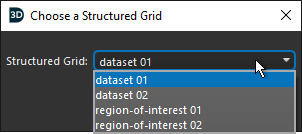
Note You will need to add at least two points to a points series to create an ROI from a points annotation.
Extract Object History as Macro
Extracts an object's history as a macro. Extracted macros not only provide an audit trail to help troubleshoot processing issues, but can be edited and replayed to create new objects (see Extracting Object Histories).
Items Available for Multiple Selections
The following items are available whenever you select two or more annotations in the Data Properties and Settings panel.
Export
The following options are available for exporting image data.
As Multiple ORSObject… Exports data as multiple files in the Dragonfly Object (*.ORSObject extension) file format (see Exporting Objects).
Export as ORSObject… Exports all data to a single file in the Dragonfly Object (*.ORSObject extension) file format (see Exporting Objects).
Execute Macro
Provides a shortcut for selecting macros that can be executed for the number of items selected.
Copy
Copies the selected annotations.
